AI Sidekick is a support tool based on artificial intelligence and integrated into multiple SALESmanago features. It can accelerate your onboarding process, generate engaging content (both text and images), help you optimize your Workflows and Contact segmentation, and much more.
Integrate AI Sidekick into your daily work routine to boost your efficiency, enhance marketing performance, and drive higher sales.
NOTE: This feature needs to be purchased separately. The billing system is based on tokens. To learn more about AI Sidekick or request its activation, please contact your Customer Success Manager or write to us at: [email protected].
Contents
1. Activation and access
AI Sidekick is a state-of-the-art feature that utilizes artificial intelligence to facilitate your marketing activities on different levels. To request its activation, please contact your Customer Success Manager or write to us at: [email protected].
Once activated, this intelligent assistant is available in various locations across the SALESmanago platform. Its format depends on its function.
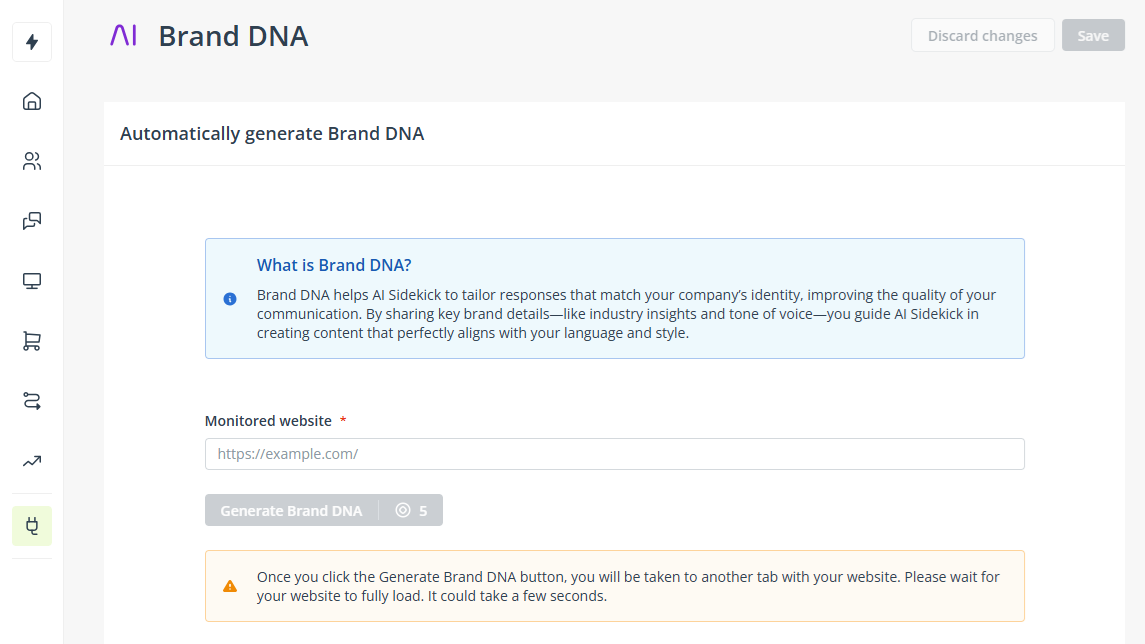
Some capabilities, such as Brand DNA, have a dedicated page in the system:
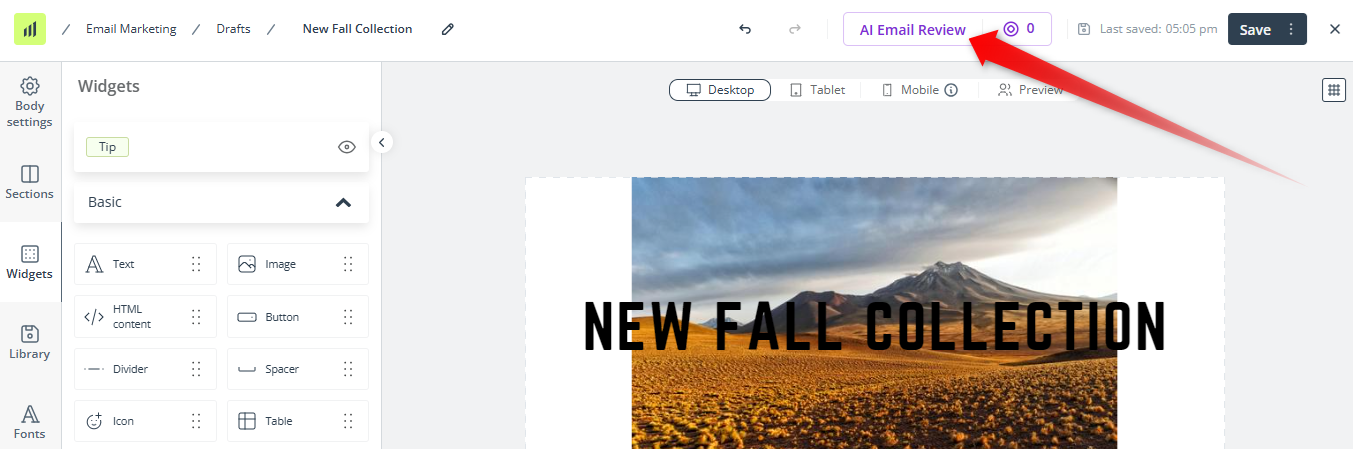
Other capabilities may be accessible through a dedicated button or tile, for example:
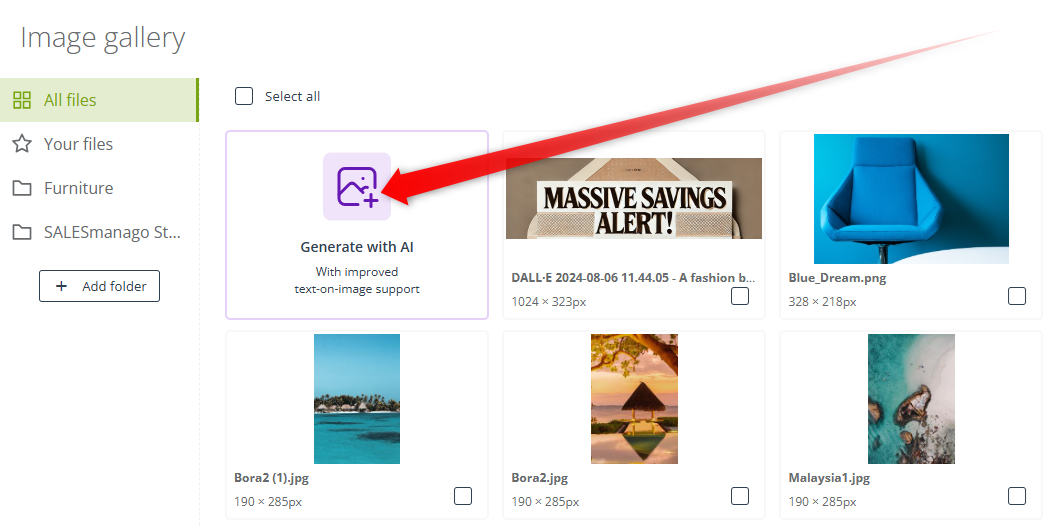
Yet other capabilities are available under a purple AI Sidekick icon in the bottom right-hand corner of the screen:
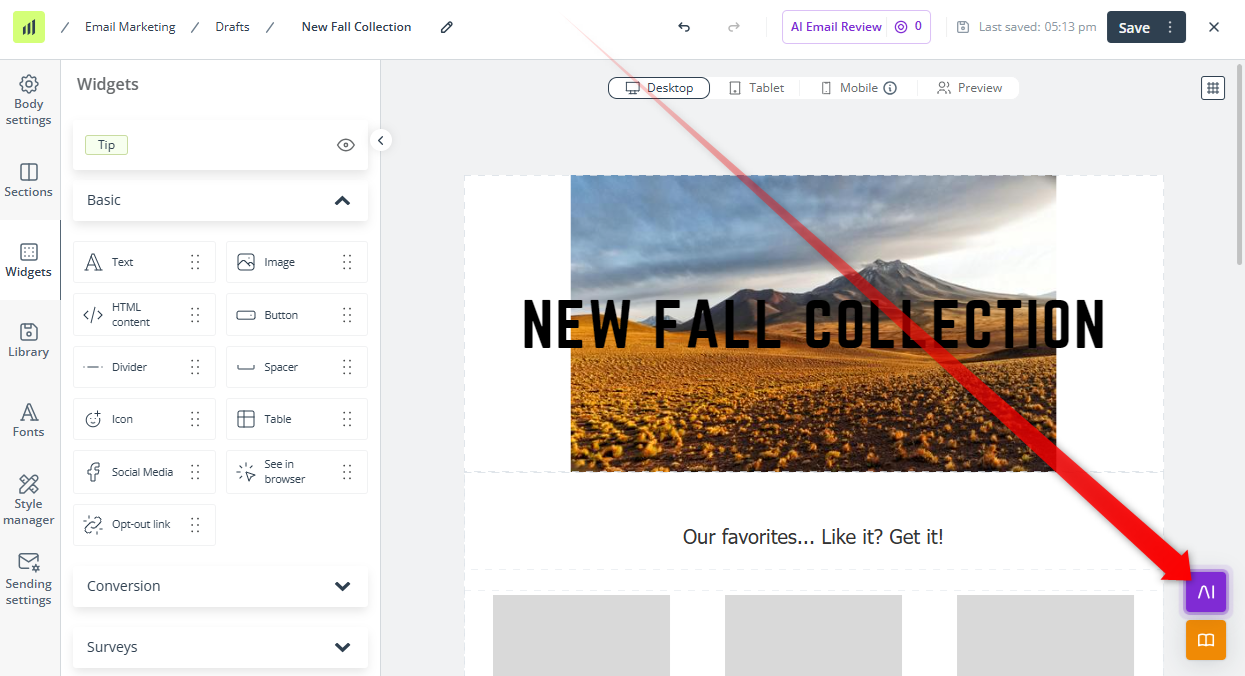
Clicking the button opens a small panel where you can type your prompt or specify the required details. Sometimes (for example, when creating an email template in the Email Design Studio) you need to start by selecting one of the available AI tools:
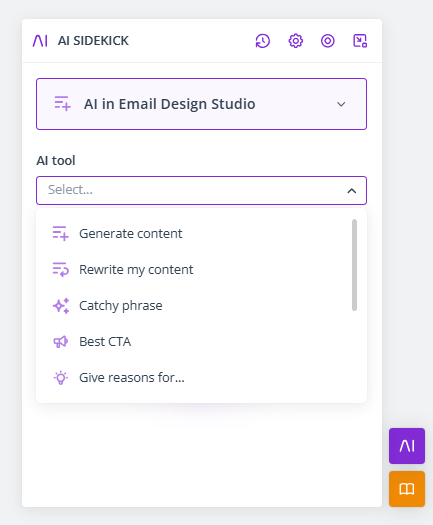
Each tool serves a different purpose—for example, AI Sidekick can generate text content, but it can also rewrite it, convert it into bullet points, or rate its effectiveness. You can read a short description when you move your cursor over a selected item, for instance:
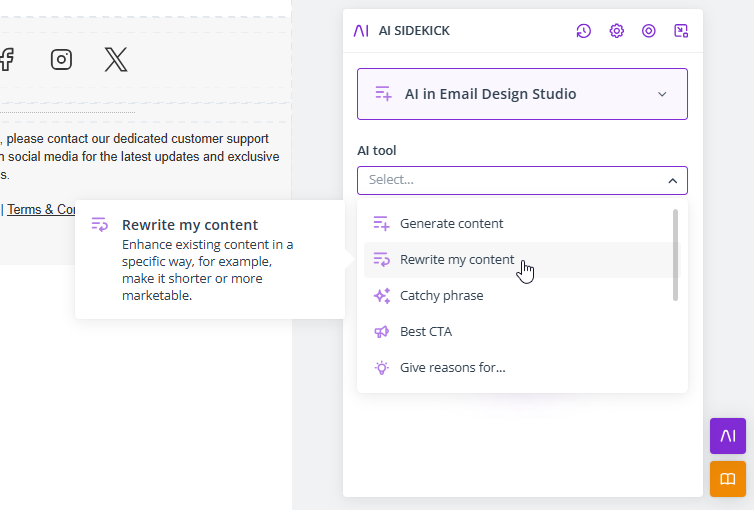
Depending on the selected tool, describe briefly what you need and/or specify the required details. For example, when using the AI tool: Rewrite my content, provide the text you want to improve and select your objective (“make this content half the length”).
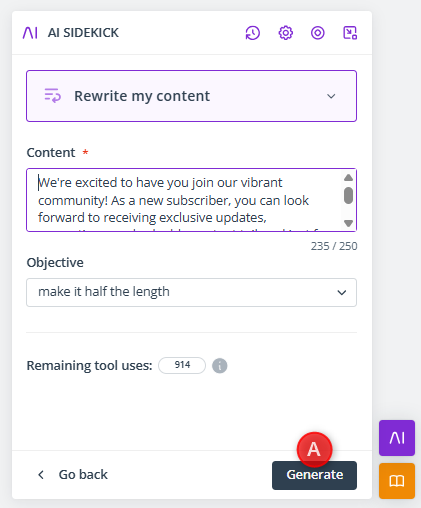
When your prompt is ready, click Generate [A]. AI Sidekick will return an output matching your description.
IMPORTANT: Remember to always verify the output generated by artificial intelligence. AI tools may occasionally produce inaccurate, incomplete, or biased results. Reviewing and validating AI-generated output helps ensure that the information you use is accurate, relevant, and aligned with your goals and values.
2. AI Sidekick: Capabilities
Use the power of AI Sidekick across multiple channels and modules to improve both your marketing performance and sales results. The full list of AI Sidekick capabilities is provided below.
AI Sidekick capabilities by system area
Integrations
- AI Integration Assistant—Transfer Contacts and External Events (such as CART or PURCHASE) to SALESmanago by integrating forms used on your website.
Learn more about AI Integration Assistant >>
- Brand DNA—Save time and improve the quality of your communication. Let AI Sidekick analyze the contents of your website to identify your branding style and language. AI Sidekick will then use this “brand DNA” to generate more personalized, brand-aligned content.
To implement Brand DNA, go to Menu → Integrations → Brand DNA and click Generate Brand DNA. Provide the address of your website (including the https:// protocol) and click Generate Brand DNA. When the analysis is complete, remember to click Save. That’s it! From now on, whenever possible, AI Sidekick will adapt its output to your branding.
Audiences
- AI Transactional Segmentation—Let AI Sidekick analyze your historical transactional data, identify the optimum ways to group your Contacts and generate a number of segments that can be used across SALESmanago whenever Contact selection is required.
Learn more about AI Transactional Segmentation >>
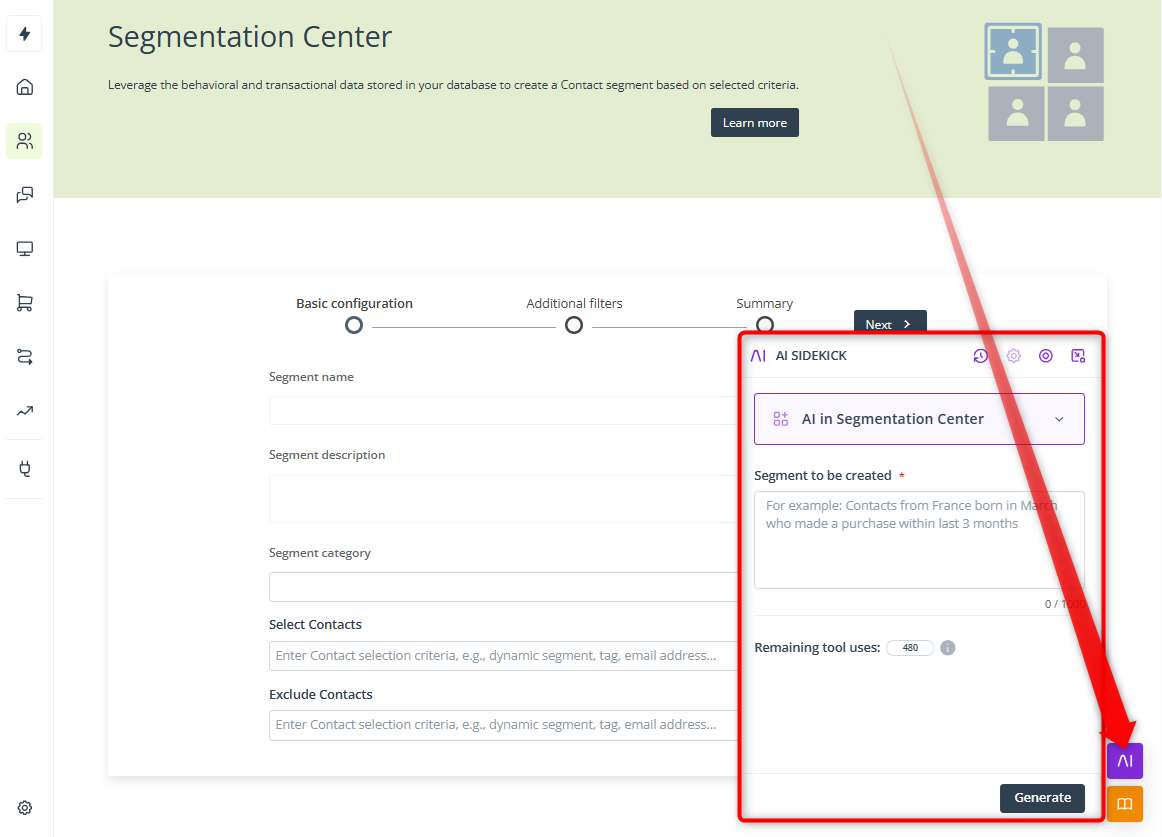
- Segment generation based on natural language description—Describe the Contact segment you want to create and let AI Sidekick configure it for you.
This feature is available when creating a new Contact segment. Go to Menu → Audiences → Segmentation → Segmentation Center and click New segment. In the wizard, click the purple AI Sidekick button in the bottom right corner to open the panel where you can type your prompt.
- Contact filtering—Segment and target Contacts based on the communication channel that is the most effective for them.
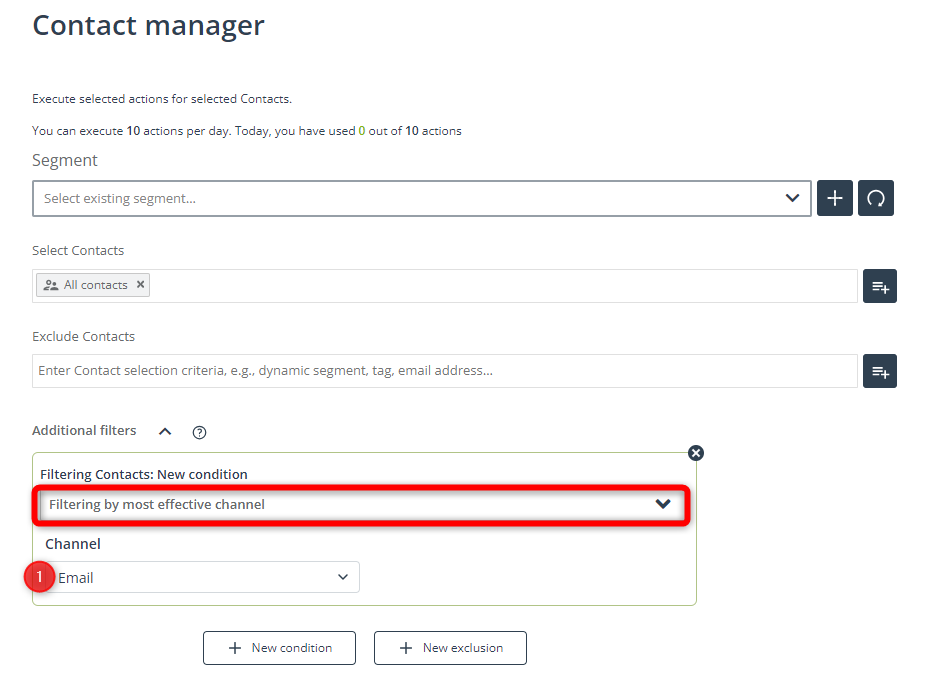
The Contact filter: Filtering by most effective channel can be used across the SALESmanago system, whenever Contact selection is required. For example, you can use it when selecting the audience for a Web Push notification.
When selecting Contacts, go to the Additional filters section and click New condition or New exclusion. Select Filtering by most effective channel from the list. Then, you can select a channel [1] to select or exclude the Contacts for whom this channel has the best results.
Channels
- Email Marketing—When using the Email Design Studio, you can benefit from the following AI Sidekick capabilities:
- Content generation—Generate, verify, and improve text content in your emails. Create stunning images in various styles to make your messages even more interesting.
- AI Email Review—Avoid mistakes in your emails and make your content even better based on AI suggestions.
When creating or editing a template in the Email Design Studio, you can click AI Email Review at the top of the screen. AI will proofread the content of your email, highlight any errors, and provide suggestions for improvement.
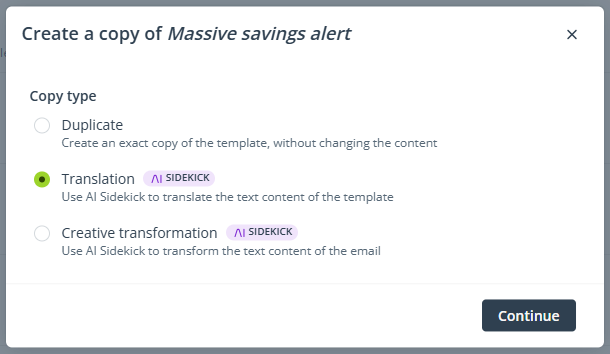
- Translation and creative transformation—Use AI Sidekick to translate the text of your email template into a selected language or to transform it creatively (for example, change its tone, adjust its length, or create a variant for A/B testing).
To use one of these features, find an email template or an email draft in the list and open the Actions menu. Select Create a copy… and select the type of copy you want to create.
- Mobile Marketing—Generate, verify, and improve the content of your text messages.
- Web Push—Generate entire notifications quickly and easily by describing the general theme and purpose. In addition to text content, you can also generate visual elements. Specify the number of buttons and provide the redirection URL(s)—and let AI Sidekick do the rest.
Web Tools
- Lead Generation pop-ups (Custom Modal Designer)—Generate, verify, and improve your text content to engage your audience more effectively.
- Live Chat—Boost your efficiency with Live Chat responses suggested by artificial intelligence and make life easier for both your consultants and website visitors.
After logging into a Live Chat, enable AI Sidekick [1].
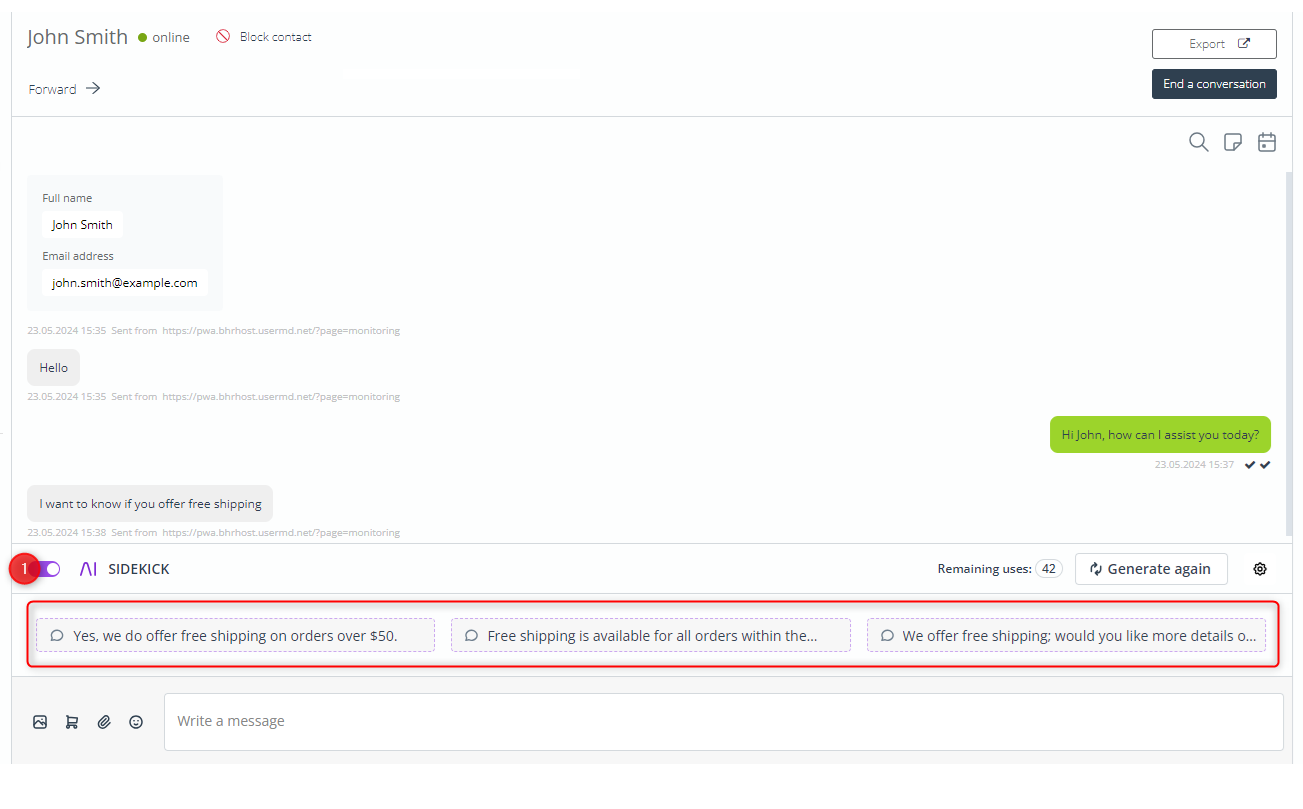
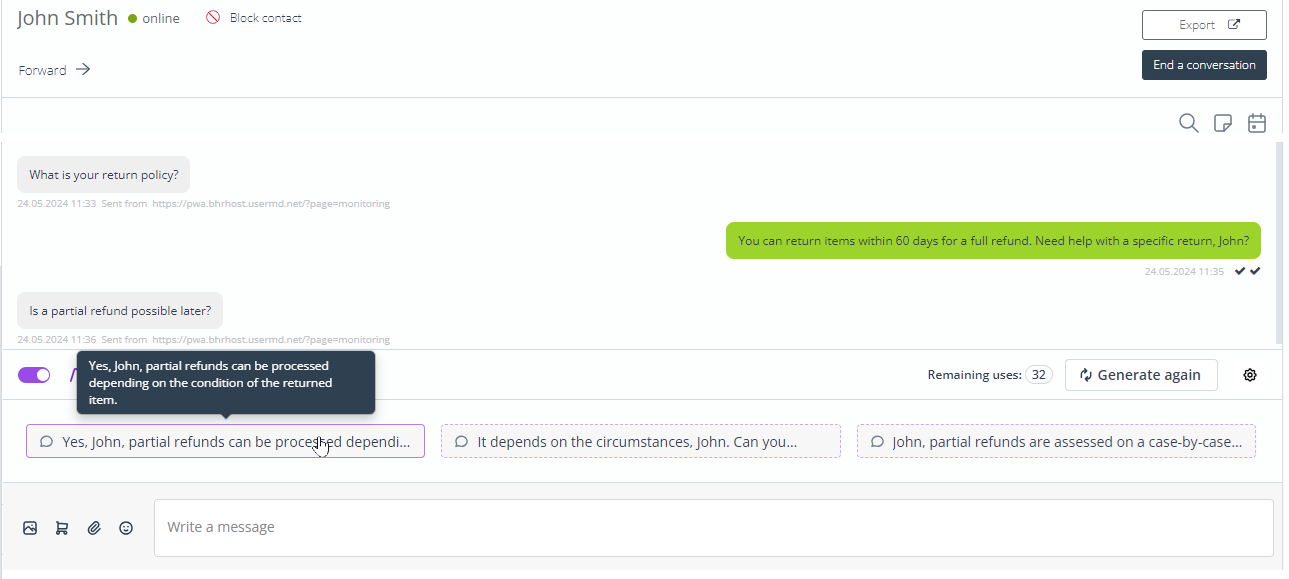
For every customer message, AI Sidekick will suggest three responses. If you click one of the suggested responses, it will not be sent automatically, but will appear in the input field below. This way, you can still edit it as necessary before actually sending it.
Read more about using Live Chat >>
Automations
- Workflows—Optimize your Automation Processes by automatically selecting the most effective channel for each individual Contact.
AI SIDEKICK: Most effective channel is a Workflow element that you can include in your Automation Processes to leave some of the decision-making to AI. AI Sidekick compares the effectiveness of various channels (Email Marketing, Mobile Marketing, Web Push) for each Contact that reaches this stage of the Workflow and, based on this analysis, automatically determines the next step.
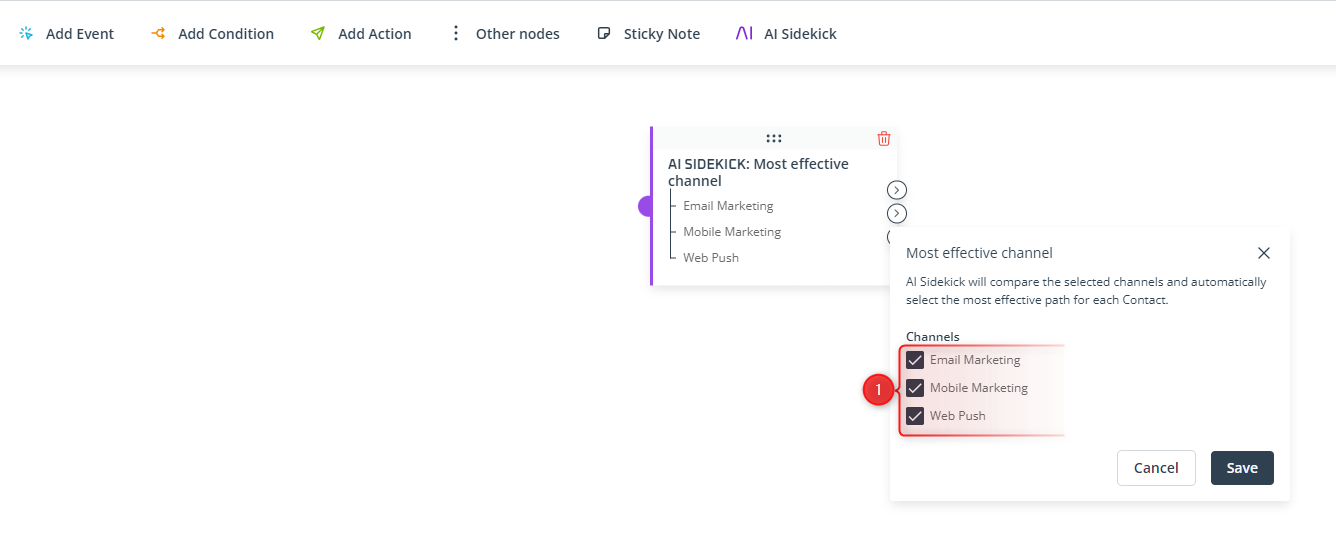
After adding this element to your Workflow, define the communication channels [1] that will be considered by AI Sidekick in its analysis. You can check or uncheck appropriate boxes. Depending on the number of channels selected, you will be able to create a corresponding number of paths. Each Contact will follow the path that is likely to be the most effective for them. For a detailed example, see Section 4.D. below.
Read more about Workflow processes >>
Image Gallery
- ALT attribute generation—Use AI Sidekick to automatically generate high-quality ALT tags in the Image Gallery. This feature supports both static images and GIF animations.
Learn more about improving accessibility on your website with AI Sidekick >>
- Image generation and edition—Generate new visuals (including images with text) or edit your existing images to suit specific goals or current needs (for example, by removing the background, replacing objects, or translating on-image text).
NOTE: This option is not available if you access the Gallery through this path: Menu → Settings → Resources → Gallery. To use this feature, open the Gallery when using one of the following features: Email Design Studio, Web Engagement Studio, Personal Shopping Inbox, Preference Center, Mobile Push creators, or Web Push creators.
3. Billing system: Tokens
AI Sidekick is based on a flexible billing system. Depending on your plan, you receive a certain pool of tokens that can be spent across SALESmanago over your billing period. If needed, you can always top up your account with more tokens by contacting our Customer Success team.
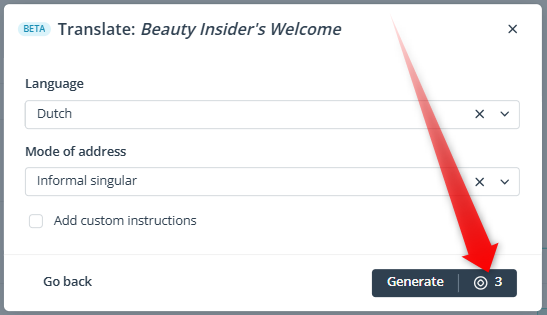
When working with AI Sidekick, you are always informed about how many tokens a specific operation will cost:
or how many times you can use a given tool with your current token balance:
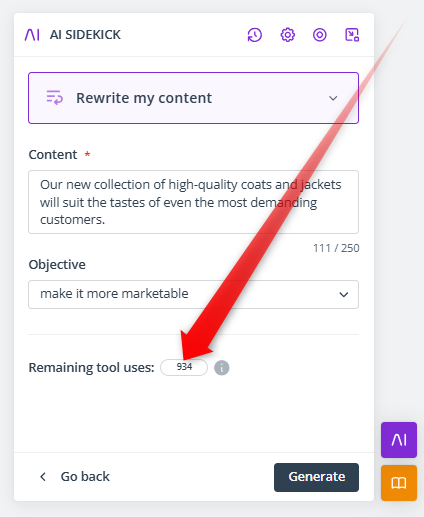
IMPORTANT: Different tools consume different numbers of tokens, so the number of remaining uses will vary for each tool.
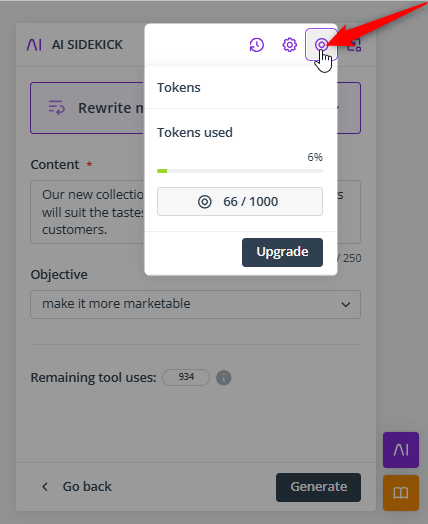
You can check your current token balance in many AI Sidekick capabilities, for example, when you click the purple AI Sidekick button and select Tokens from the top bar of the panel:
4. Examples and use cases
Below, you can find practical examples of how AI Sidekick can be helpful in achieving specific business objectives. We recommend reading all the examples to gain a general understanding of the tools you have at your disposal.
4.A. Engage your customers with compelling content
Use AI Sidekick when creating your marketing communications to craft engaging content that will catch your customers’ attention and encourage them to visit your store.
EXAMPLE: A new camping equipment collection has just arrived in your store, and you want to inform your Contacts about it by email. You need an interesting call-to-action (CTA) that will be included in your email’s headline.
Open AI Sidekick and select the tool: Best CTA. Enter a brief description [1], for example:
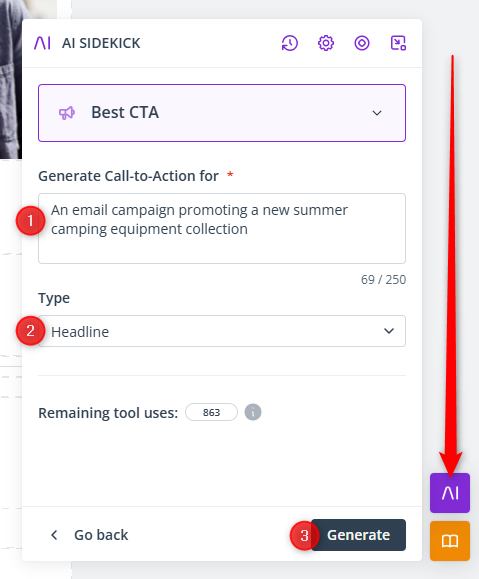
Specify the type [2], i.e., where the CTA will be used—in this case, a headline. Click Generate [3].
In this example, AI returned the following result:
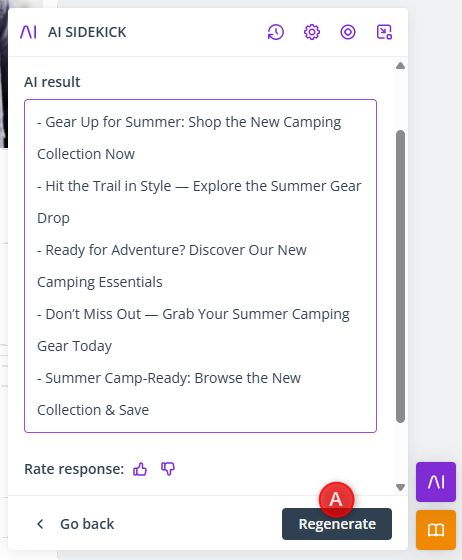
If you are not pleased with the output and would like to try again, click Regenerate [A].
TIP: In some tools, AI Sidekick provides a number of suggestions to choose from. You can combine the returned phrases to craft your own unique message!
4.B. Enhance your emails with high-quality visuals
You can easily enrich your emails with attractive visual content by using the AI Sidekick image generation tool. You can generate illustrations, photo banners, or icons in a style that matches your needs and is consistent with your brand concept.
EXAMPLE: You are a bookstore owner and you need an illustration for your newsletter. You want it to have a retro feel, in a pencil drawing style, and to suit the bookstore atmosphere with a beige background.
In the Email Design Studio, click an Image widget to access its settings. Click Select from gallery. Once in the Image Gallery, click Generate with AI [1].
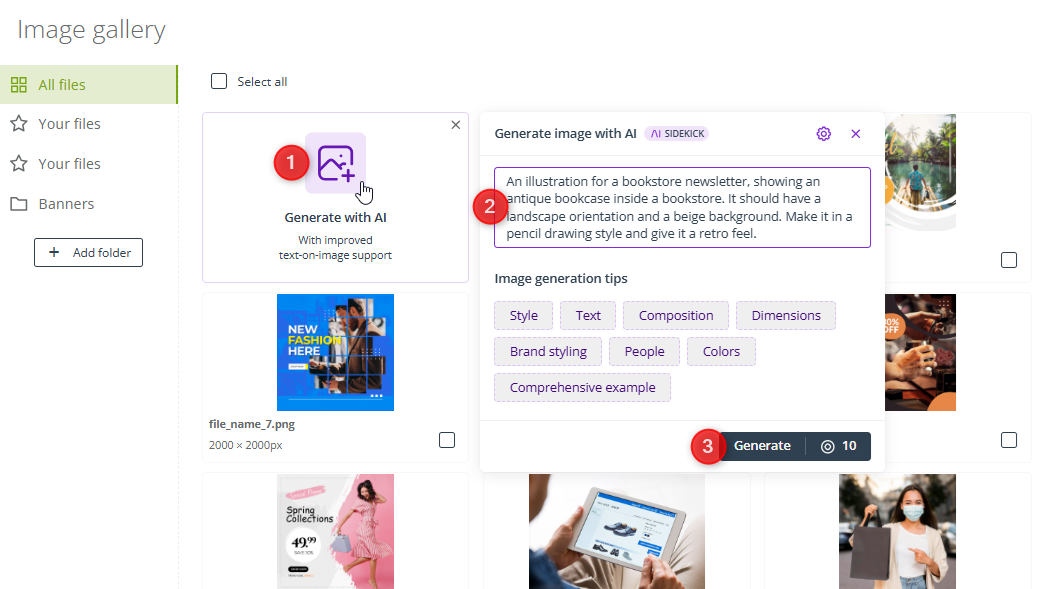
A side panel will appear, where you can enter your prompt [2]. Finally, click Generate [3].
In this case, AI Sidekick returned the following result:
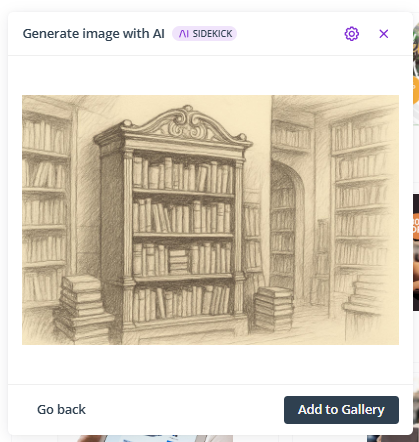
You can use the dedicated button to add it to your Gallery and then use it in your email template.
Alternatively, you can right-click the generated image and copy it or save it to your device.
From the same panel, you can also edit images using AI. This can be particularly useful if you want to place a product photo on a specific background, or translate the text, without waiting for internal resources.
4.C. Provide excellent customer service
AI Sidekick can serve as your assistant in Live Chat conversations. It provides accurate, real-time suggestions for responses. Your consultants can choose between three options and amend them as necessary. This allows you to respond much more quickly, which contributes to overall user satisfaction.
EXAMPLE: A website visitor starts a conversation. AI Sidekick suggests greetings that can save you time.
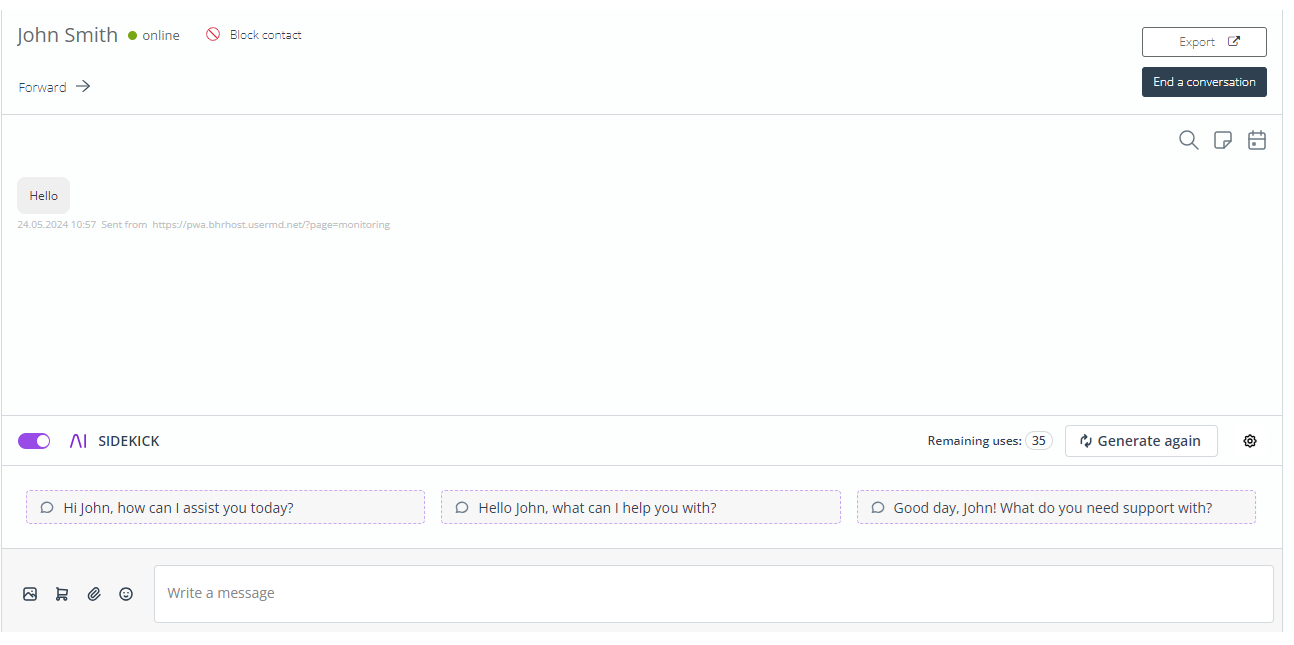
It turns out this is a customer who wants to know more about your return policy. Again, AI Sidekick provides three suggestions for possible replies. You can select the most suitable one and edit it to match your specific circumstances.

The customer then asks whether a partial refund would be an option. AI Sidekick generates different answers that consider various possibilities. Your consultant can select the one that matches your store’s refund policy.
4.D. Target your audience through the right channels for maximum results
The Workflow element: AI Sidekick: Most effective channel helps you reach each customer through the channel that works best for them. This personalized approach maximizes the chances that your messages will not be overlooked, while also allowing you to reduce the number of sent communications.
EXAMPLE: You run an e-store and you want to reward customers who have reached the golden tier in your Loyalty Program. You decide to generate unique coupon codes for them and send them by email, SMS, or Web Push, depending on which channel is the most effective for individual customers.
Create three message templates—one for the email, one for the text message, and one for the Web Push notification—and include the $coupon$ placeholder in them.
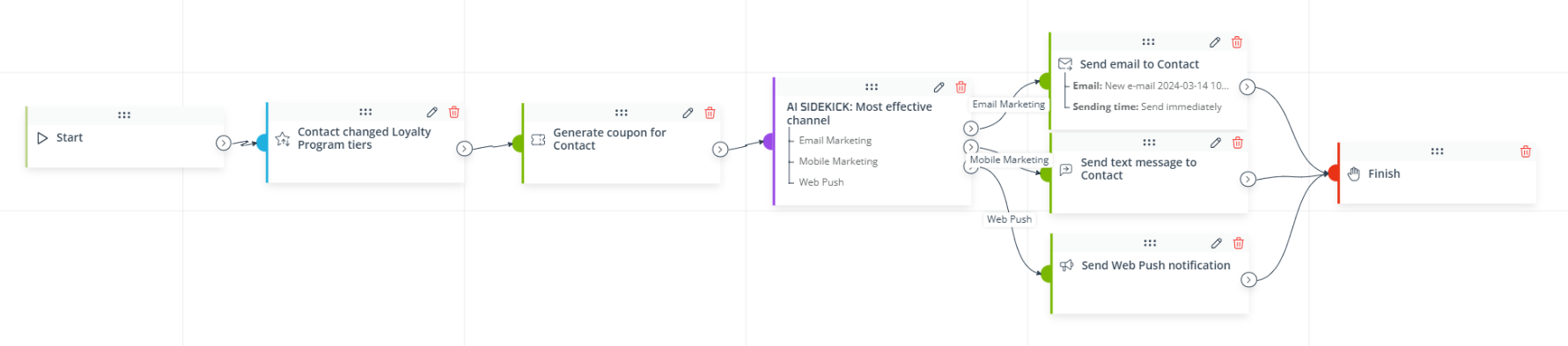
Configure a Workflow in which the Event: Contact changed Loyalty Program tiers (Settings—Tier: Gold) triggers the Action: Generate coupon for Contact. Then, using AI Sidekick: Most effective channel, create three paths for your customers, each containing a different Action, as shown in the screenshot below.
Configure each Action by selecting the messages created for the purpose of this campaign in the Actions’ settings.
Customers for whom Email Marketing is the most effective channel will receive the email; those for whom Mobile Marketing works best will receive the text message; and those who have shown a preference for Web Push notifications will receive the coupon code through this channel.