The Email Design Studio offers a wide range of widgets—elements that allow you to include different types of content in your email. This article explains how to configure the Icon widget.
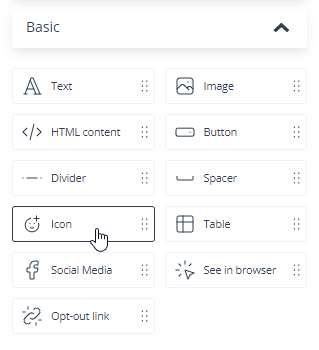
Learn more about Email Design Studio widgets >>
Icon
Icons can make your email visually lighter, draw attention to important information, and replace large images that cause unnecessary data usage.
By default, the Icon widget consists of two parts: an icon and text. You can decide on their mutual arrangement in the Content section of the widget settings. If you don’t want the icon to be accompanied by text, uncheck this box:

The Content section is also where you can select the icon image (there are hundreds to choose from!) and add a link to the icon.
In the Style section, you can choose the size and color for your icon.
To edit and format the text accompanying the icon, click on it and use the toolbar that appears at the top of the screen:

Read about common widget settings (including positioning, links, and display settings) >>
TIP: Emoticons can perform a similar role as icons. You can add an emoticon to any text by selecting the appropriate option on the top toolbar: