The Email Design Studio offers a wide range of widgets—elements that allow you to include different types of content in your email. This article explains how to configure the Image widget.
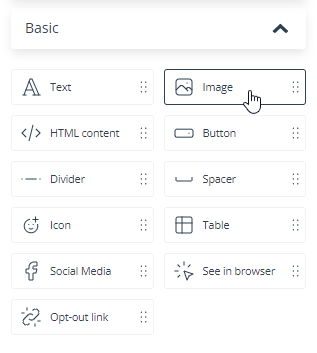
Learn more about Email Design Studio widgets >>
Image
The Image widget allows you to include a graphical element in your email.
After dragging and dropping the Image widget into the email body, you can insert an image in two ways: by selecting it from the gallery or dragging it from a local folder and dropping it into the indicated area:
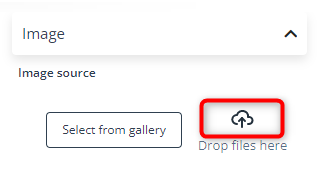
An image dragged and dropped in this way will automatically be added to your gallery.
When you have inserted your image into the widget, you can specify its maximum width. The image will be scaled proportionally. If you want to adjust the image height and width separately, click Adjust image dimensions.
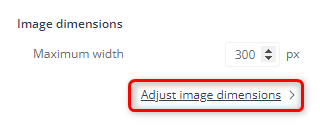
TIP: Be careful when applying individual height adjustments because an image with an altered aspect ratio may not look right.
Read about common widget settings (including positioning, links, and display settings) >>