If you include the Action: Send email to Contact in an Automation Rule, the SALESmanago system will automatically send a selected email to a Contact in response to a specified triggering Event (provided that all specified Conditions are met—if applicable).
After dragging the tile into the panel, click on the settings icon to specify the action’s details.
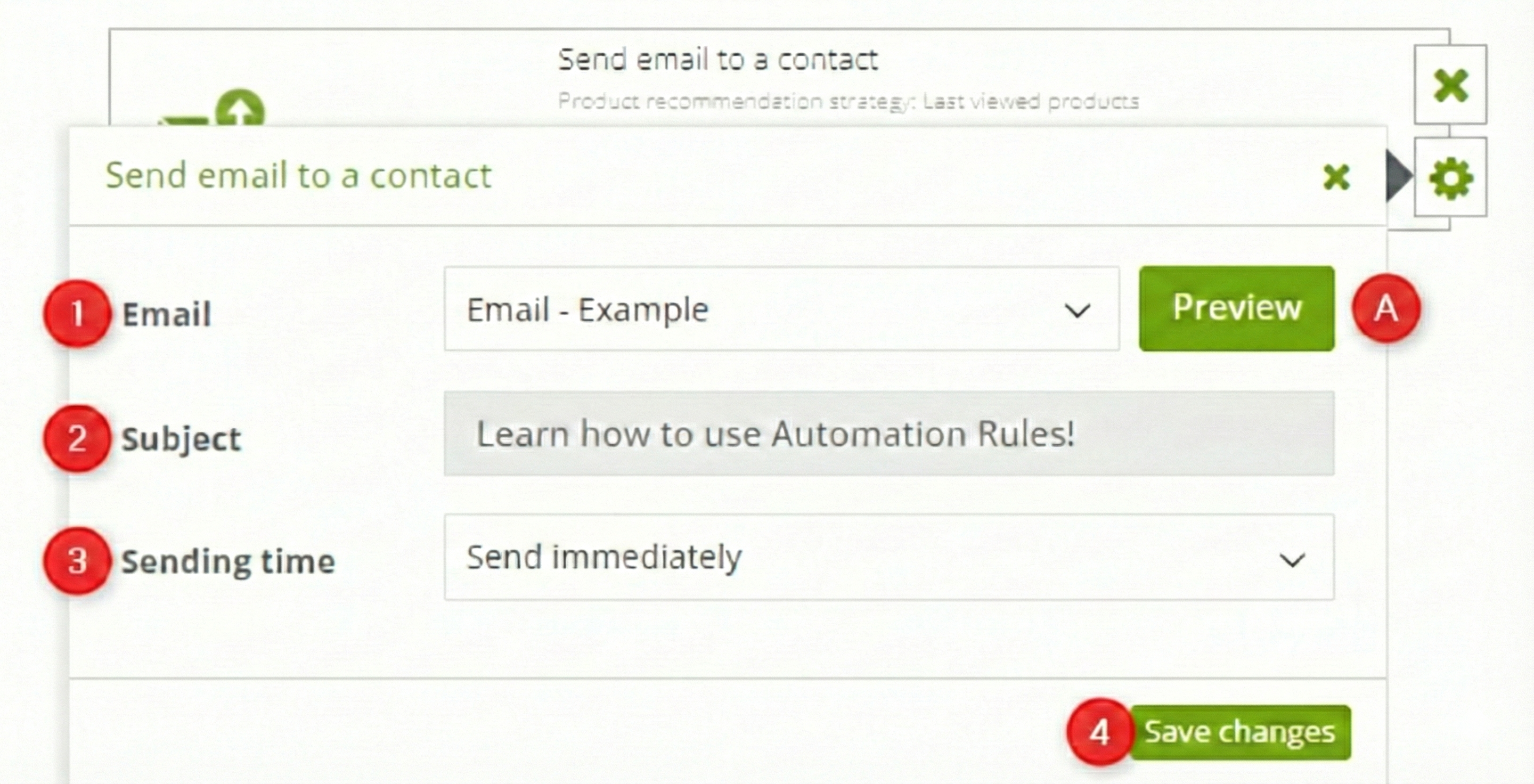
[1] Email—select the email you want to send in response to the specified Events and Conditions. The list includes all finished emails available on your Email List.
Click Preview [A] to see the selected email in a new tab.
[2] Subject—the email subject that your recipients will see in their inboxes. You can define the subject in the email settings (in the email creator). To change the subject, edit the email and then go back to configuring your Automation Rule.
[3] Sending time—select when the email should be sent in relation to the occurrence of the triggering Event. You have the following options:
- Send immediately—If you select this option, the email will be sent to the Contact immediately after the triggering Event occurs.
- Send after…—If you select this option, the email will be sent after the specified number of hours has passed from the occurrence of the triggering Event.
- Send based on Contact’s activity—If you select this option, the system will determine the best time for sending the email based on the Contact’s behavioral profile.
EXAMPLE: If you select the option Day and hour:
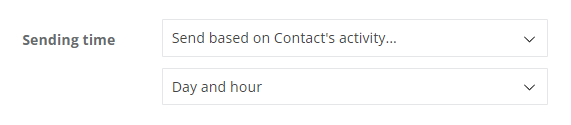
The SALESmanago system will analyze the Contact’s interactions with your monitored website and determine on what day of the week and at what time the Contact is most active (and thus, most likely to notice and open your email). This is when the email will be sent.
Note that if you select Day or Day and hour, the email can be sent even 7 days after the occurrence of the triggering Event.
- Send at specific time of the day—If you select this option, the email will be sent at a specific time within the next 24 hours.
When you have defined all the settings, click Save changes [4].
IMPORTANT: The product recommendation strategy for an email containing a Dynamic Product Block/Frame (marked with a cart icon on list [1]) can be selected in the wizard in which the email was created.