SALESmanago offers a simple and straightforward integration with WhatsApp, using 360Dialog as the intermediary platform.
Contents
1. Getting started
This integration allows you to connect your WhatsApp channels (phone numbers) to SALESmanago.
To perform the integration, you will need:
- A 360Dialog account—You can use an existing account or create a new one during the integration process.
- A Meta Business Account—You can use an existing account or create a new one during the integration process.
- A Facebook account with admin access to the Meta Business Manager of your company.
- A WhatsApp Business Account—You can use an existing account or create a new one during the integration process.
2. Integration process
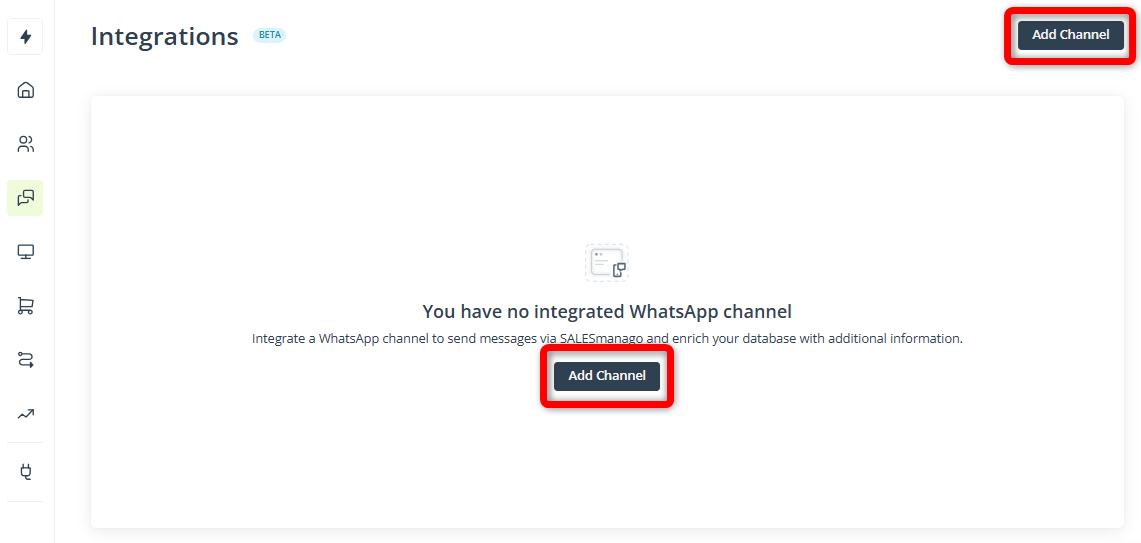
To integrate your SALESmanago account with your WhatsApp account, in SALESmanago, go to Menu → Channels → WhatsApp → Settings. Click Add channel.
Provide a name for the new integration and click Proceed to configuration.
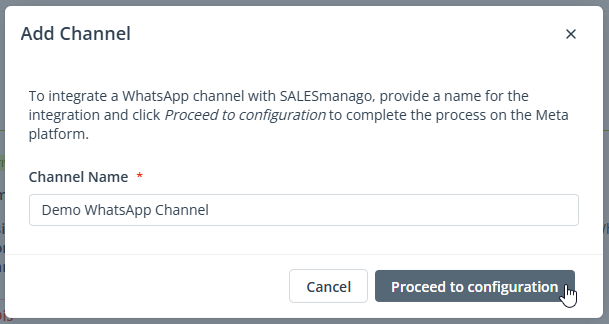
A new browser window will open, prompting you to either create a new 360Dialog account or to log in to an existing one. The next steps will differ depending on your situation. Refer to Section 2.A or 2.B, respectively.
2.A. Creating a new 360Dialog account
This path is most likely if you are integrating the first WhatsApp channel with SALESmanago.
NOTE: If, during the integration process, you choose a phone number that is already integrated with SALESmanago, the existing integration will be updated (for example, its name), but no new channel will be created.
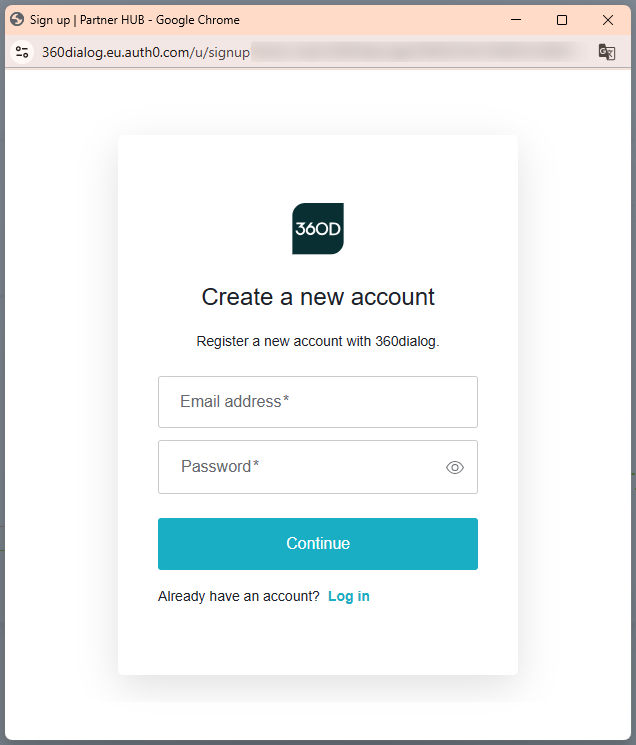
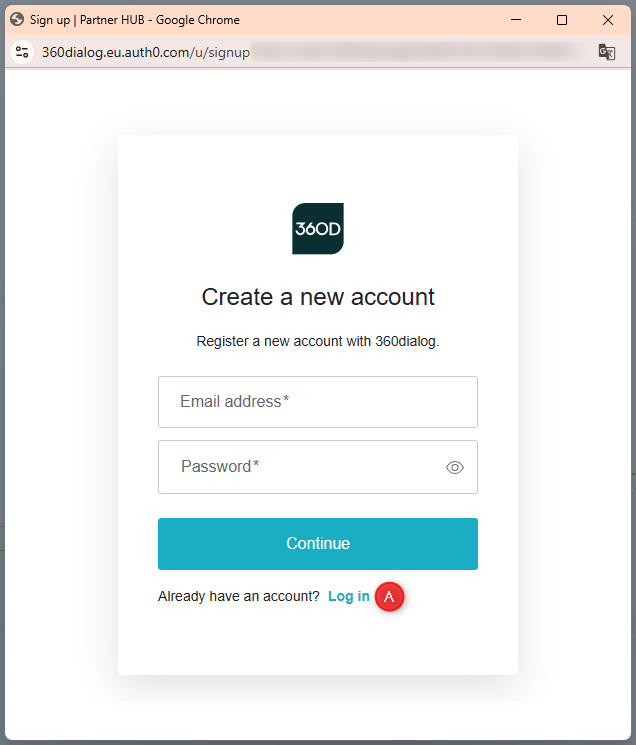
If you have no 360Dialog account yet, provide your email address and a password and click Continue.
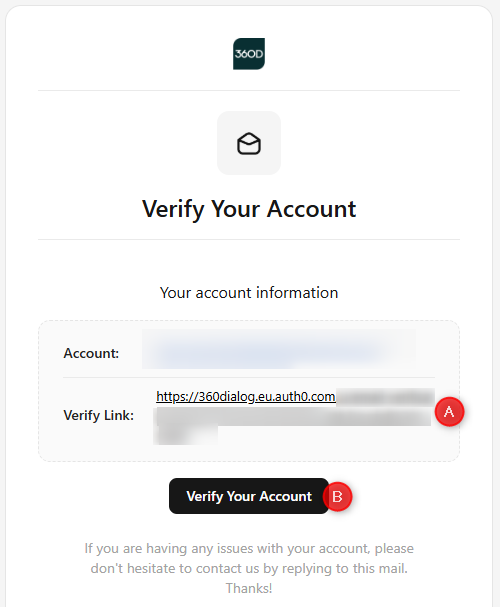
At this point, you will receive an email from 360Dialog asking you to verify your account.
Open the email and click the dedicated link [A] or button [B].
Return to the 360Dialog window. Provide the basic information [1] about you and your company.
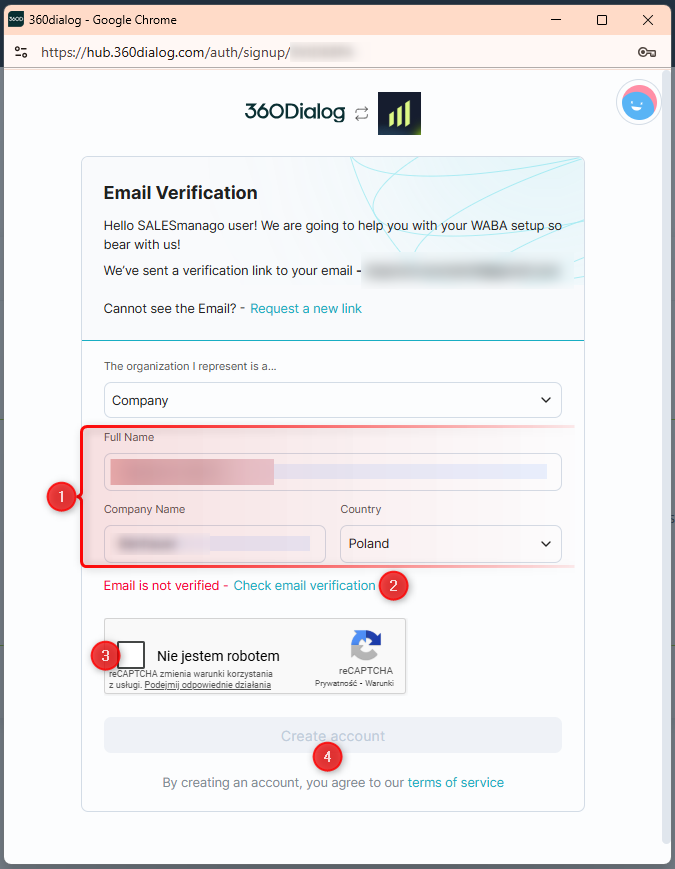
Click Check email verification [2] and check the reCAPTCHA box [3].
Click Create account [4].
On the following screen, provide the necessary information about the phone number (WhatsApp channel) you are going to integrate. The follow-up options will vary depending on your selections, for example:
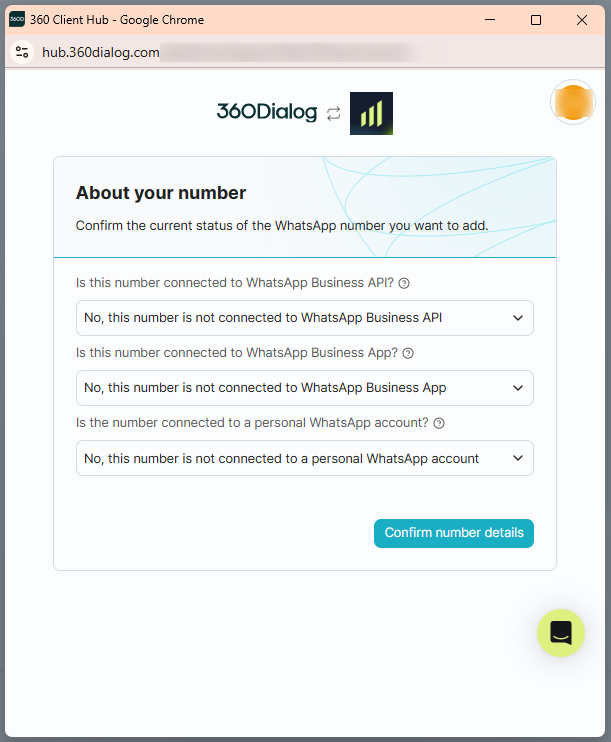
After providing the required information and clicking Confirm number details, you will proceed to Meta’s Embedded Signup.
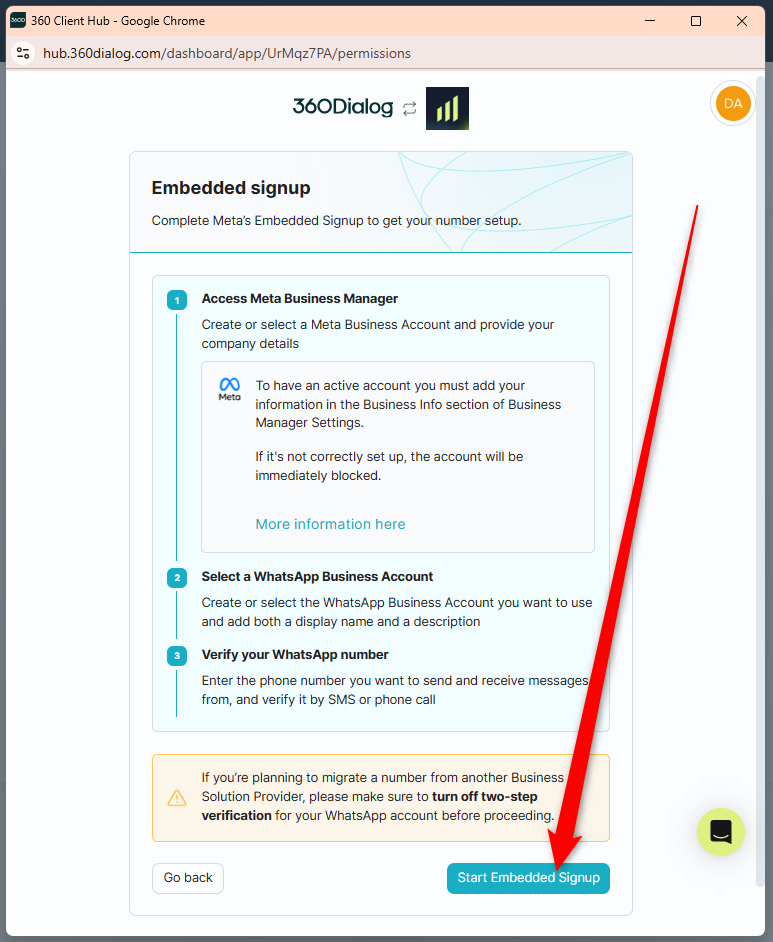
When you click Start Embedded Signup, another browser window will open, this time—on the Facebook domain.
Log in to your Facebook account.
IMPORTANT: The Facebook account must have admin access to your company’s Meta Business Manager.
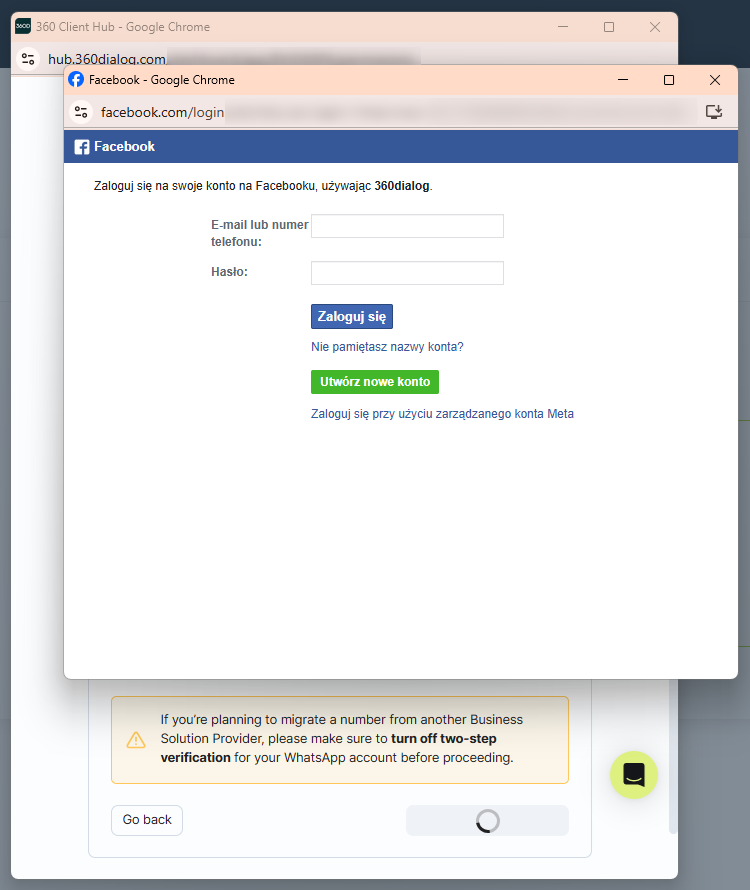
As part of the Embedded Signup, you will be prompted to connect your Facebook account with your 360Dialog account and to select a company portfolio.
In the final phase of the integration process, you will be referred back to the 360Dialog browser window, where you can select the phone number (WhatsApp channel) you want to integrate [A] or configure a new phone number [B].
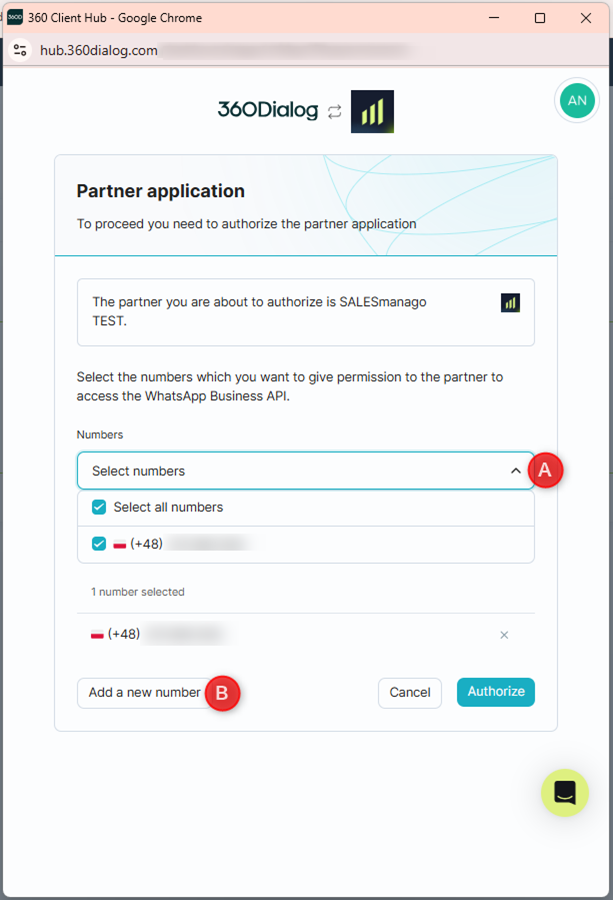
TIP: You can select multiple phone numbers at once. The first number will operate under the name entered at the beginning of the integration process (e.g., “My WhatsApp Channel”), and the following ones will receive the same name with numbering appended (e.g., “My WhatsApp Channel 2”, “My WhatsApp Channel 3”).
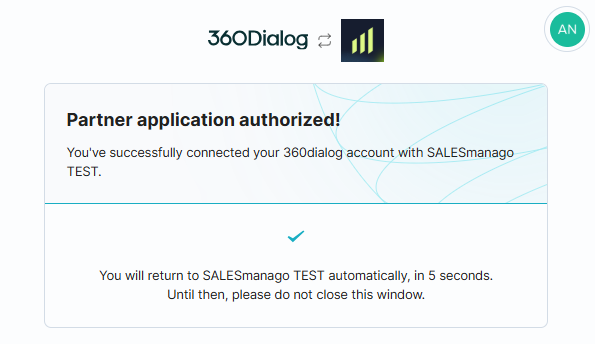
When you see the following message, the integration process is complete:
2.B. Logging in to an existing 360Dialog account
This path is most likely if you are integrating a second or subsequent WhatsApp channel with SALESmanago.
If you already have a 360Dialog account, click Log in [A] and provide your credentials.
The next steps depends on the level of completeness of your WhatsApp account configuration.
If you already have a phone number that is:
- Connected to WhatsApp Business API
- Connected to WhatsApp Business App
- Connected to a personal WhatsApp account
you will be able to immediately select it:
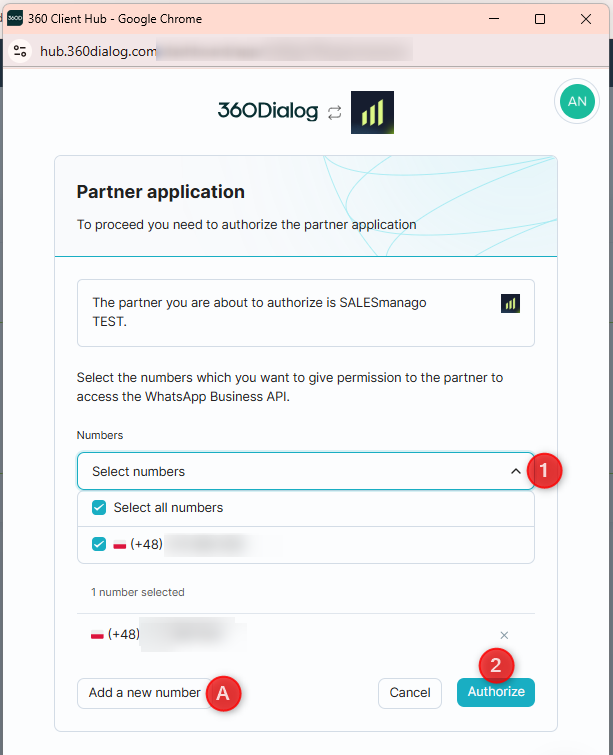
After selecting the phone number you want to integrate [1], click Authorize [2]. That’s it! After a few seconds, you will return to SALESmanago and you will see that the newly integrated channel is pending verification. When the status changes to Active, the new channel is ready to use.
TIP: You can select multiple phone numbers at once. The first number will operate under the name entered at the beginning of the integration process (e.g., “My WhatsApp Channel”), and the following ones will receive the same name with numbering appended (e.g., “My WhatsApp Channel 2”, “My WhatsApp Channel 3”).
If the phone number you want to integrate is not in the list, you can click Add a new number [A]. After answering some questions about this number, you will proceed to Meta’s Embedded Signup.
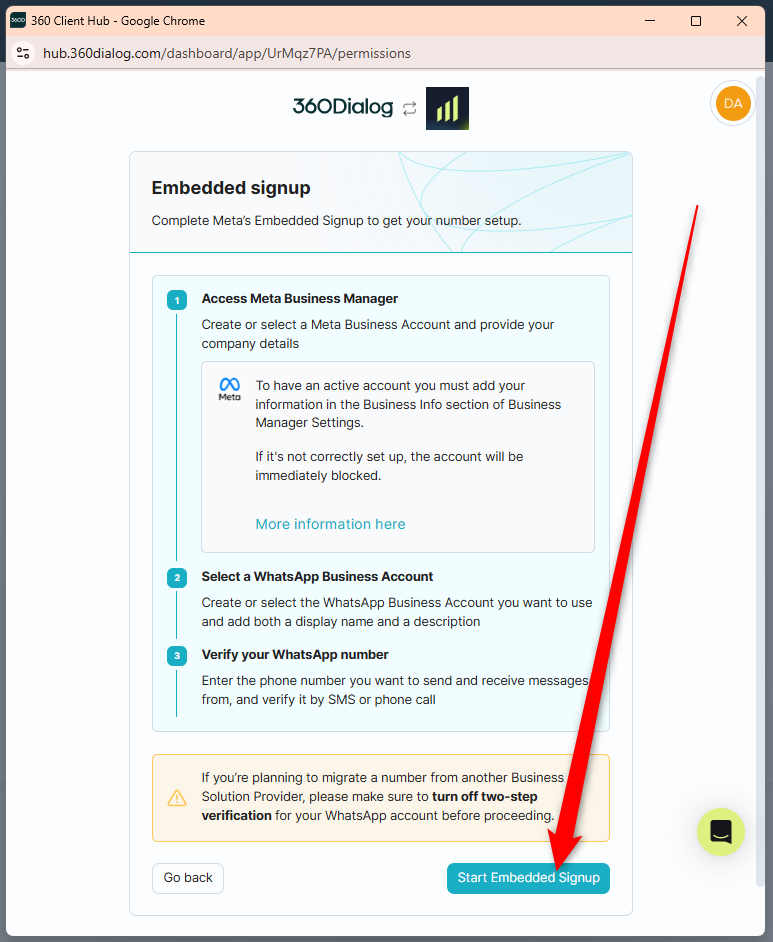
When you click Start Embedded Signup, another browser window will open, this time—on the Facebook domain.
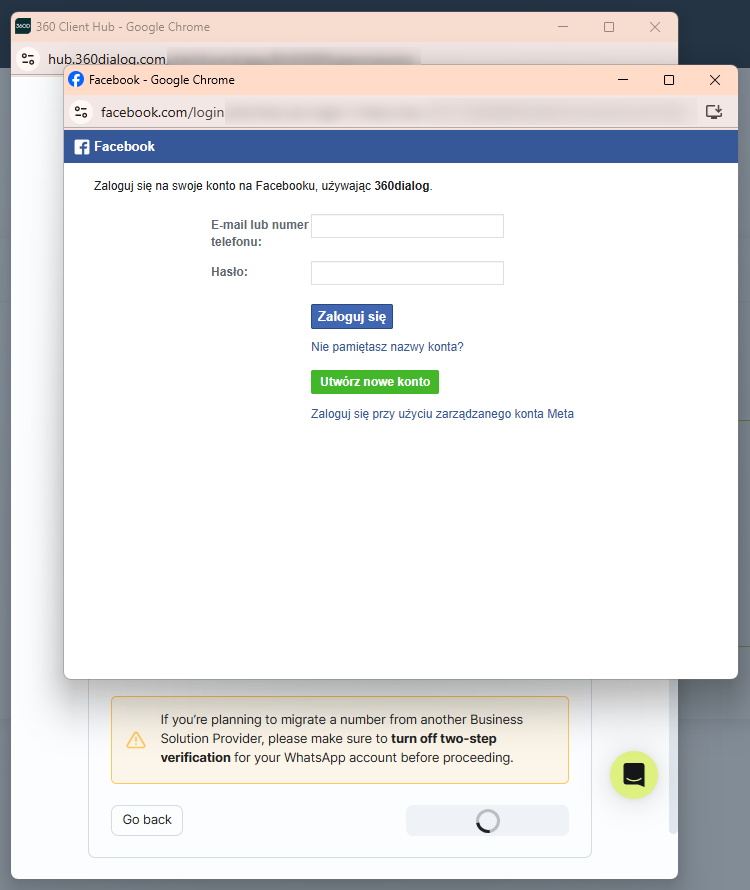
Log in to a Facebook account that has admin access to your company’s Meta Business Manager. Next, follow the instructions provided on the screen (this will include verifying the new phone number) until you return to the 360Dialog window, where you can select the newly added phone number and click Authorize.
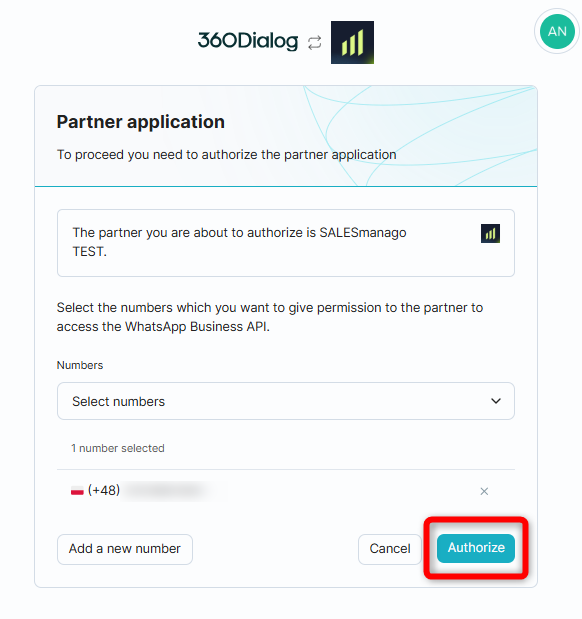
This will complete the integration process. After a few seconds, you will return to SALESmanago, where you will see that the newly integrated channel is pending verification. When the status changes to Active, the new channel is ready to use.
If you have no phone number configured on your 360Dialog account, you will see the following screen:
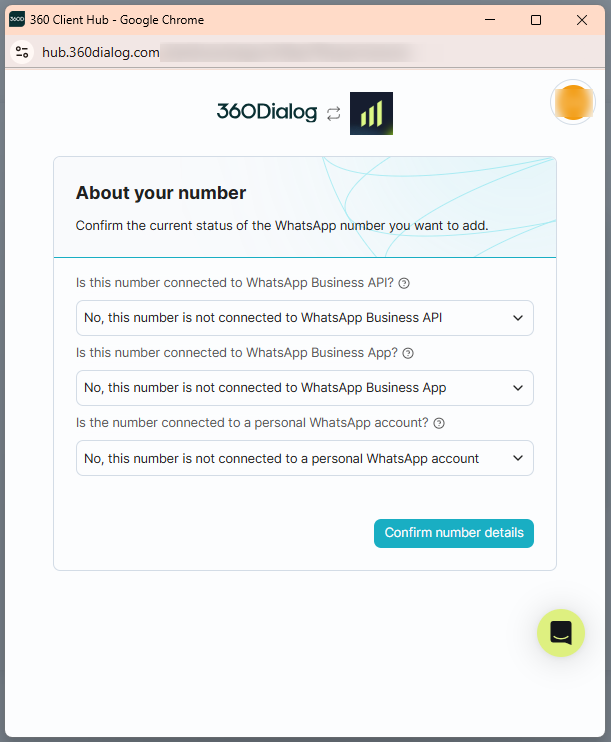
Answer the questions about the phone number you intend to add. After clicking Confirm number details, you will proceed to Meta’s Embedded Signup.
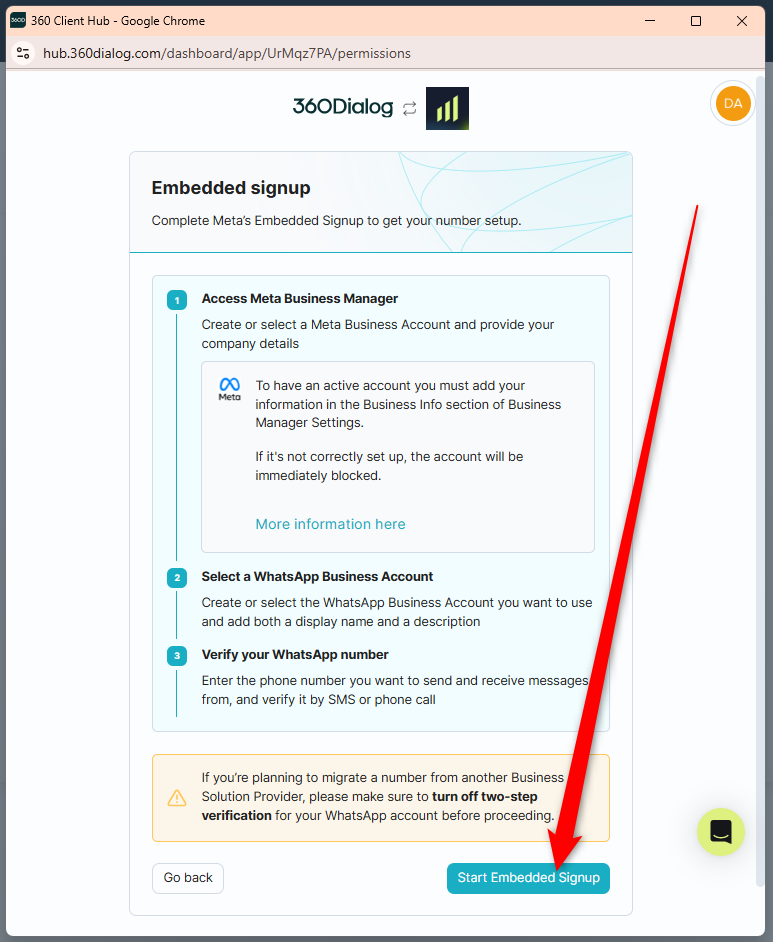
When you click Start Embedded Signup, another browser window will open (on the Facebook domain).
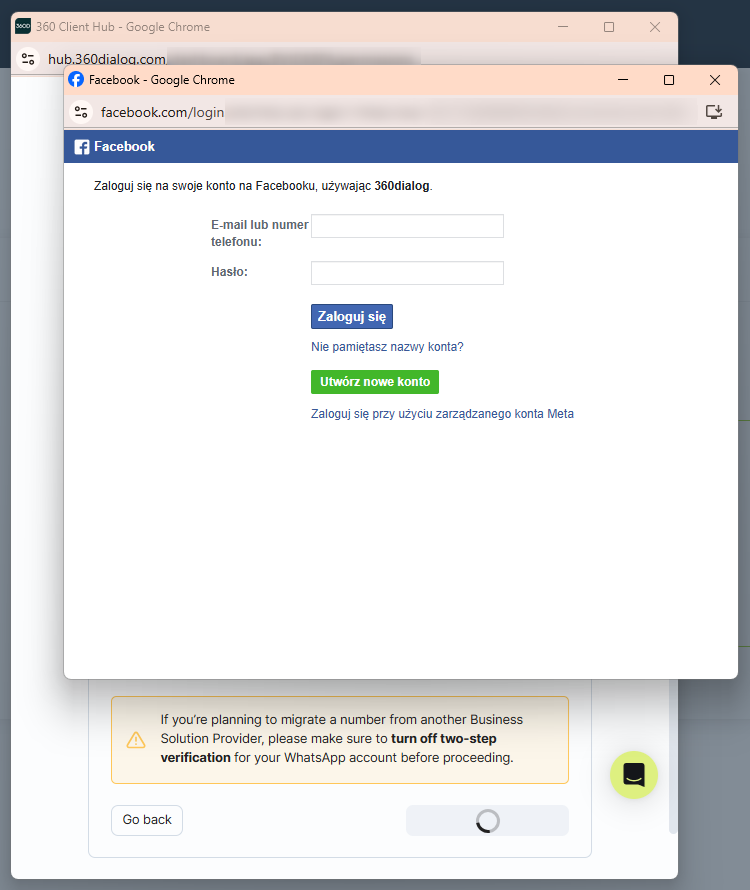
Log in to a Facebook account that has admin access to your company’s Meta Business Manager. Next, follow the instructions provided on the screen (this will include verifying the new phone number) until you return to the 360Dialog window, where you can select the newly added phone number and click Authorize.
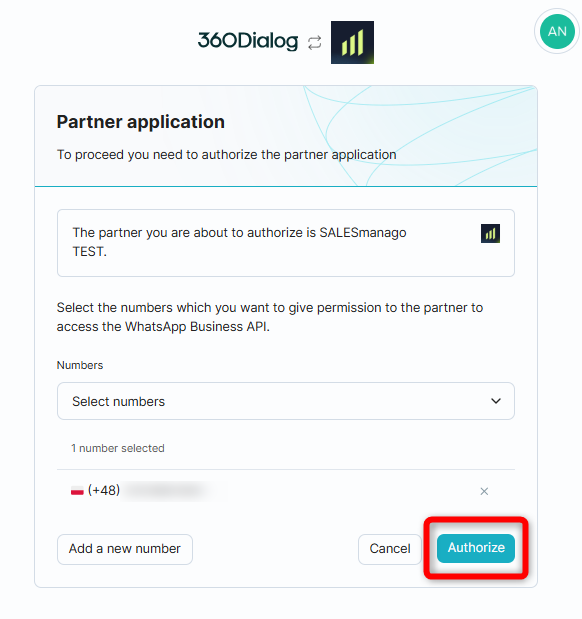
This will complete the integration process. After a few seconds, you will return to SALESmanago, where you will see that the newly integrated channel is pending verification. When the status changes to Active, the new channel is ready to use.